Transcription
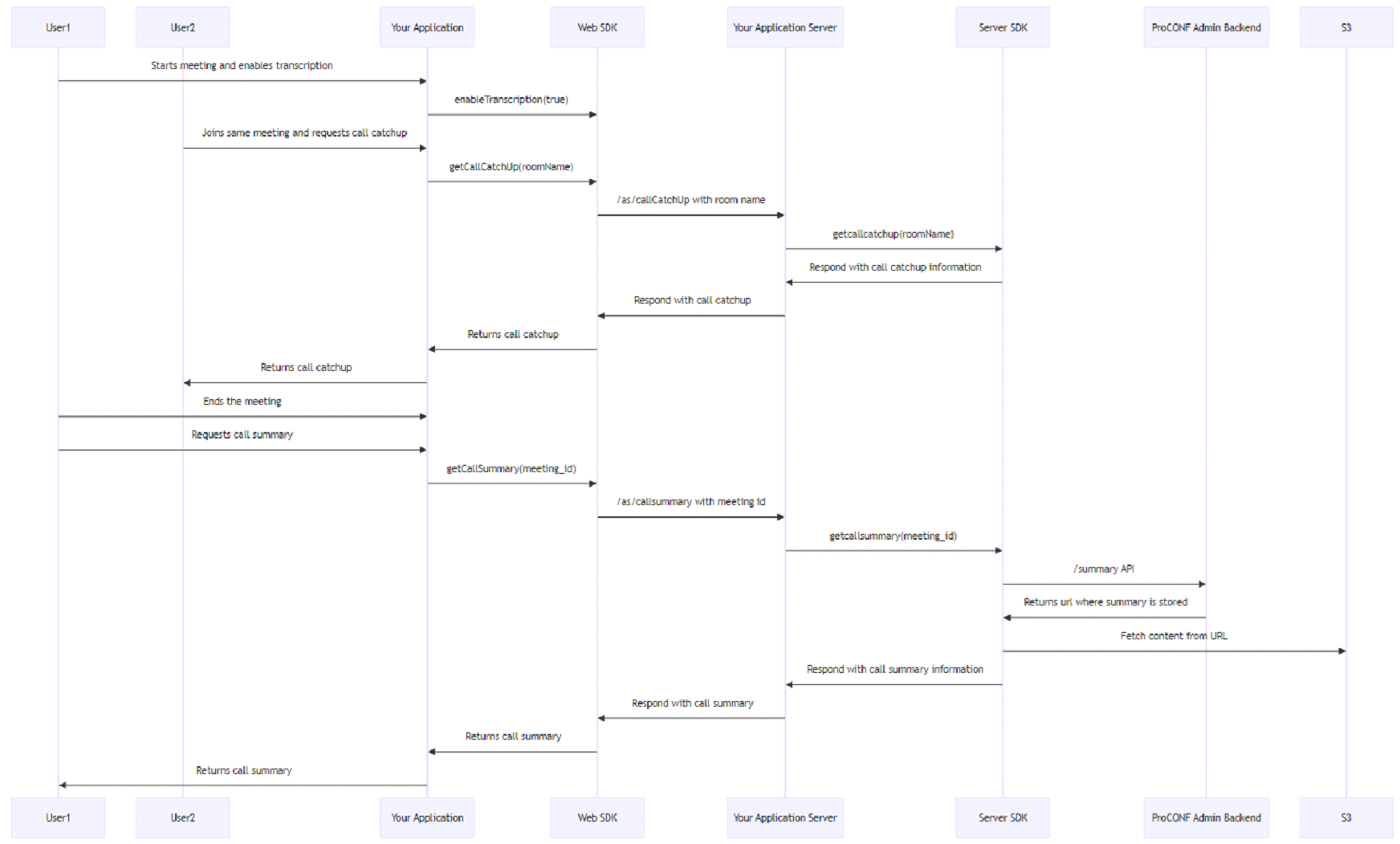
Members in a meeting can enable transcription to get a live caption of the voices in the meeting. This feature is also required for other advanced features like call catch up and call summary.
To enable transcription, the transcription feature needs to be enabled from the Admin dashboard. When this feature is enabled, you can verify its status on the client side by calling the getCallConfig() function. This function lists all features with boolean values, where true indicates the feature is enabled.
Once the transcription feature is enabled by the admin, a member has to explicitly turn on transcription for each meeting. To start or stop transcription, use the enableTranscription API in the Room class, passing true to start and false to stop the feature. When a member or moderator starts transcription, you will receive the ENDPOINT_MESSAGE_RECEIVED event. Listening to this event will provide the participant UID (participant who spoke the message) and message. The message can be captured from this event and displayed as a subtitle in a meeting.
Get the List of Features
To get the list of features that are enabled/disabled from the Admin portal, call the getCallConfig() function on proconfManager.
Usage Example:
proconfManager
  .getCallConfig()
  .then((featuresList) => {
    if (featuresList.transcript) {
        console.log("Transcription is enabled")
    }
  })
Start/Stop Transcription
After confirming that transcription is enabled from the admin side, members/moderators can start/stop transcription once the meeting has started. To start or stop transcription, call the enableTranscription API in the Room class.
Usage Example:
// Start transcription
room.enableTranscription(true);

// Stop transcription
room.enableTranscription(false);
Once transcription is started in the meeting, you will begin receiving ENDPOINT_MESSAGE_RECEIVED events on the client side.
room.on(PROCONF_EVENTS.ENDPOINT_MESSAGE_RECEIVED, (data: { participant: string, message: string }) => {
  console.log(`Participant ID: ${data.participant}, Message spoken by participant: ${data.message}`);
});
Call CatchUp
In meetings where members join late, it's essential to catch up on what was discussed. To facilitate this, we've introduced the Call CatchUp feature. However, access to this feature depends on the transcription feature being enabled first. Here's how you can manage these features from the admin dashboard and use them based on meeting participants' needs.
Checking Feature Enablement
Before using the Call CatchUp feature, you must verify if it's enabled from the admin side. Use the following code snippet to fetch the configuration:
proconfManager
  .getCallConfig()
  .then((featuresList) => {
    if (featuresList.catchup_meeting) {
        console.log("Call CatchUp is enabled");
    }
  })
Fetching Call CatchUp
Once you've confirmed that Call CatchUp is enabled, you can retrieve the catch-up for a specific meeting when the participant joins using the following function:
proconfManager.getCallCatchUp(roomName)
    .then(data => {
        console.log("Call CatchUp:", data);
    })
Notes
- Ensure that the transcription feature is enabled before attempting to use Call CatchUp.
By following this guide, you can effectively manage and utilize the Call CatchUp feature to enhance meeting experiences for all late joinees.
Call Summary
A call summary provides a brief overview of a video conference, including key details such as the date, participants, main topics discussed, and action items. It ensures that all participants are aligned on the meeting's outcomes and next steps. However, access to this feature depends on the transcription feature being enabled both on the admin backend and in the meeting.
Checking Feature Enablement
Before using the Call Summary feature, you must verify if it's enabled from the admin side. Use the following code snippet to fetch the configuration:
proconfManager
  .getCallConfig()
  .then((featuresList) => {
    if (featuresList.call_summary) {
        console.log("Call Summary is enabled");
    }
  })
Fetching Call Summary
After confirming that the Call Summary feature is enabled from the admin side, users can retrieve the call summary once the meeting has ended. To get the call summary, use the getCallSummary function on the proconfManager class, passing the meeting_id as a parameter.
Parameters:
meeting_id: A unique identifier for the meeting, obtained after thegetMeetingListAPI ofproconfManager
Usage Example:
The following example demonstrates how to use the getCallSummary function to obtain a call summary:
const meetingUid = $uniqueMeetingId; // Replace with your actual meeting unique ID

proconfManager
  .getCallSummary(meetingUid)
  .then((callSummary) => {
    // Successfully retrieved call summary
    console.log(callSummary);
  })